Relations in action – Example
In the following scenario, Let’s say a user opens an AutoExcelForms-generated form based on a Sales table. This Sales table avoids repeating product and salesperson details. Instead, it links to separate Product and Salesperson tables — a structure designed for Power Pivot and clean reporting.
That structure is excellent for summary reports and analysis — but it makes data entry and record review in Excel painful. Without AutoExcelForms, users would need to create clunky lookup formulas to interactively view related details, and entering new records would be error-prone.
With AutoExcelForms, it takes just two clicks to remove those barriers:
A floating “parent” display window
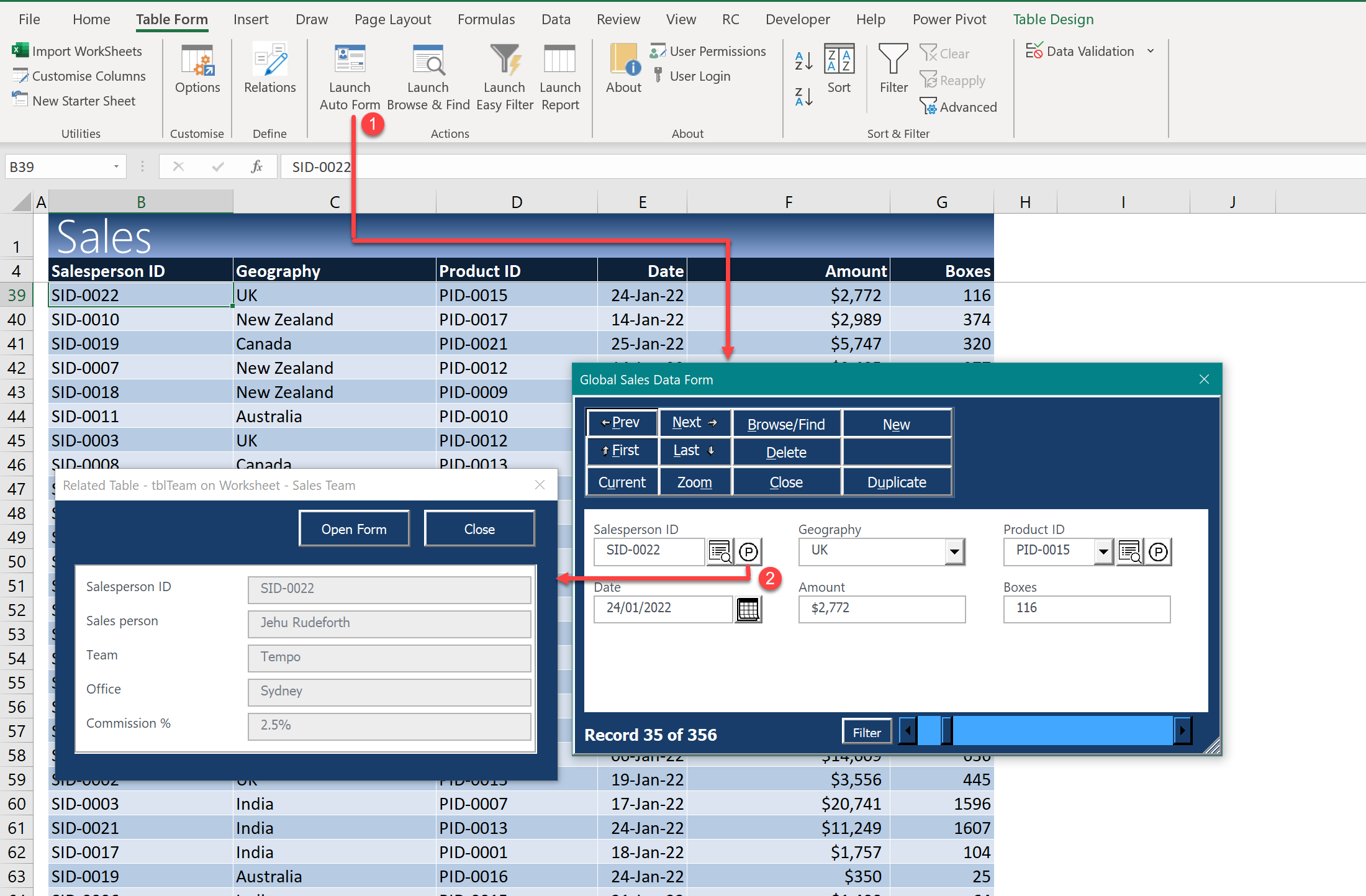
When the user opens the form, AutoExcelForms generates the usual editable fields based on the Sales table — but also detects that a relationship exists between Sales and other tables (via Power Pivot or the built-in Data → Relationships dialog, or the simple Auto ExcelForms Relationship manager described later).
For each related parent table, AutoExcelForms automatically adds two small clickable icons next to the relevant field:
- A “P” icon that brings up a read-only parent display
- A Search icon (magnifying glass) for browsing and selecting parent records
In the example above, the user clicks the “P” icon beside the Salesperson ID field. Instantly, a floating window appears showing the full Salesperson details. As the user navigates the Sales table via the main form, the data in the floating window updates in real time — no setup or coding required.
But what if the user is adding a new sales record, or wants to change the salesperson?
Instead of flipping through sheets or scrolling endlessly, they can simply click the search icon — the magnifying glass next to the Salesperson ID field.
Using the search icon to find a parent record when adding or editing.
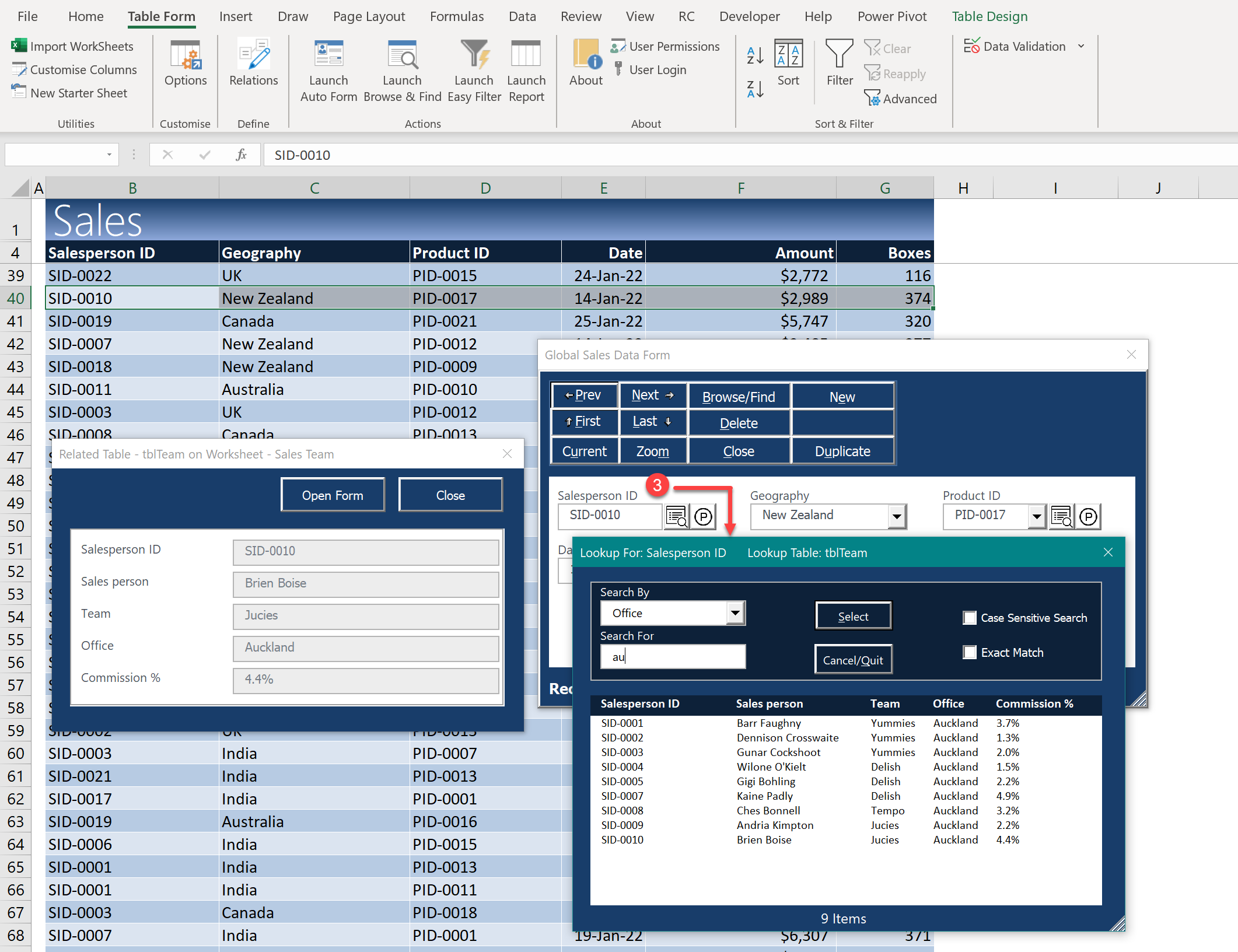
This opens a searchable lookup list of all records in the Salesperson table. The list shows multiple columns — such as name, region, and ID — and lets the user quickly filter by any field. As they type, the list narrows instantly.
In the illustration the user wishes to change the salesperson on the sales record and knows that the salesperson is from the Auckland location.
In just a couple keystrokes, the user quickly narrows the search to find the correct individual and clicks to select. The correct ID is automatically entered into the field — no typos, no guesswork, no manual lookup needed.
This was
Continuing the Example: Viewing Related Child Records
So far, we’ve viewed the data from the perspective of a child table — in this case, a Sales record that looks up details from two related parent tables: tblProducts and tblTeam (for products and salespeople). Each sale is linked to a single product and a single salesperson — classic one-to-one relationships from the sales record’s point of view.
But from the parent perspective — say, tblTeam — the relationship is one-to-many: each salesperson can appear in dozens of sales records. AutoExcelForms handles this seamlessly.
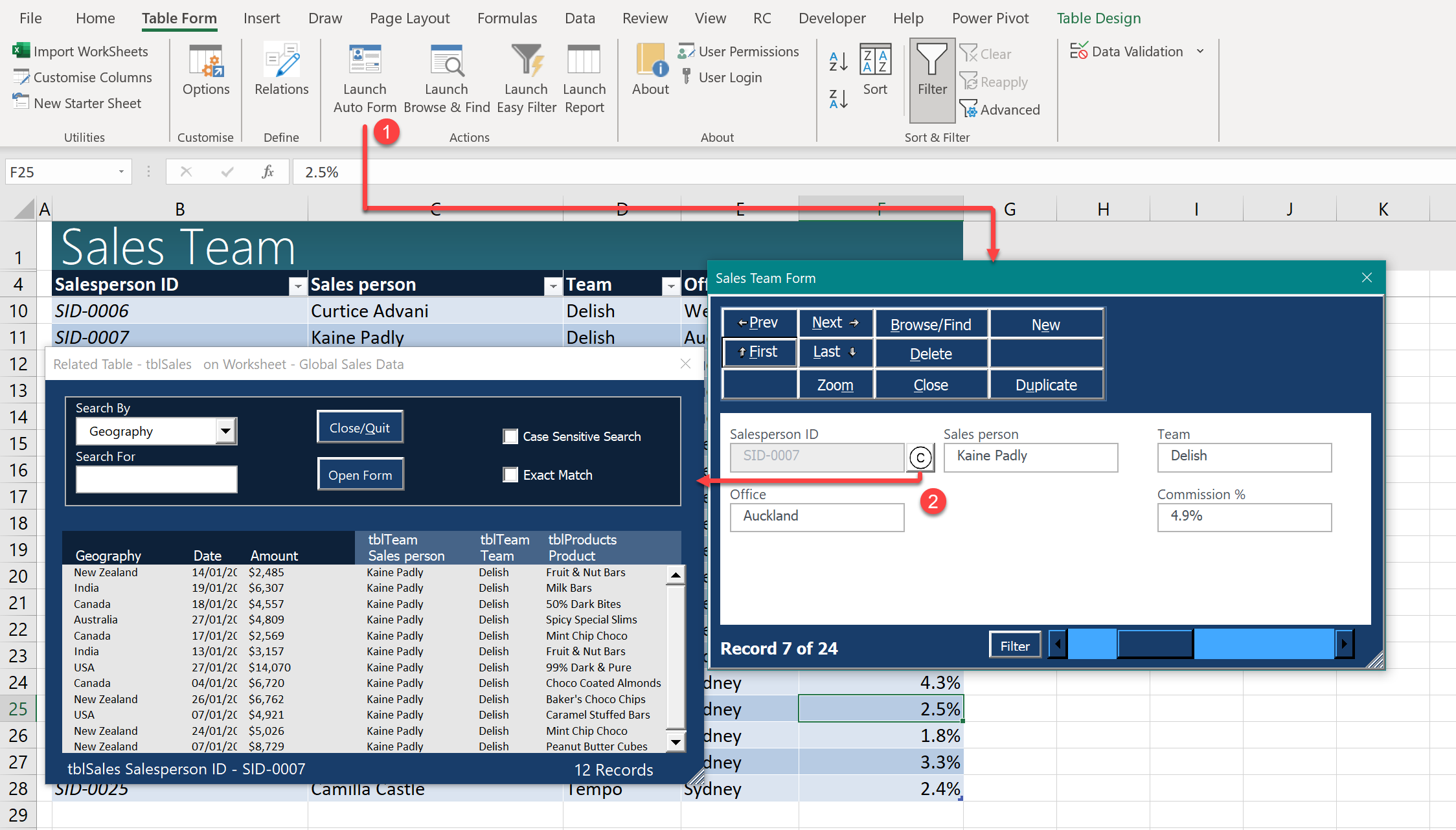
When you launch a userform for a parent table (like tblTeam), AutoExcelForms detects the child relationships and automatically adds a clickable “C” icon next to the relevant field. Clicking this icon opens a floating window that shows all related child records.
This child record view is dynamic, scrollable, and includes:
- Column-based search
- Case-sensitive or insensitive matching
- Partial or exact match filtering
As the user navigates through the parent table with the main form (viewing different salespeople), the child window updates automatically to show all linked sales records in real time.
Floating window with Child records
For any field having more than one child table, clicking on its’ “C” icon pops up a small selection window allowing you select which table of related records to view as you navigate the main form.
No setup. No formulas. No code.
Just data-driven insight —
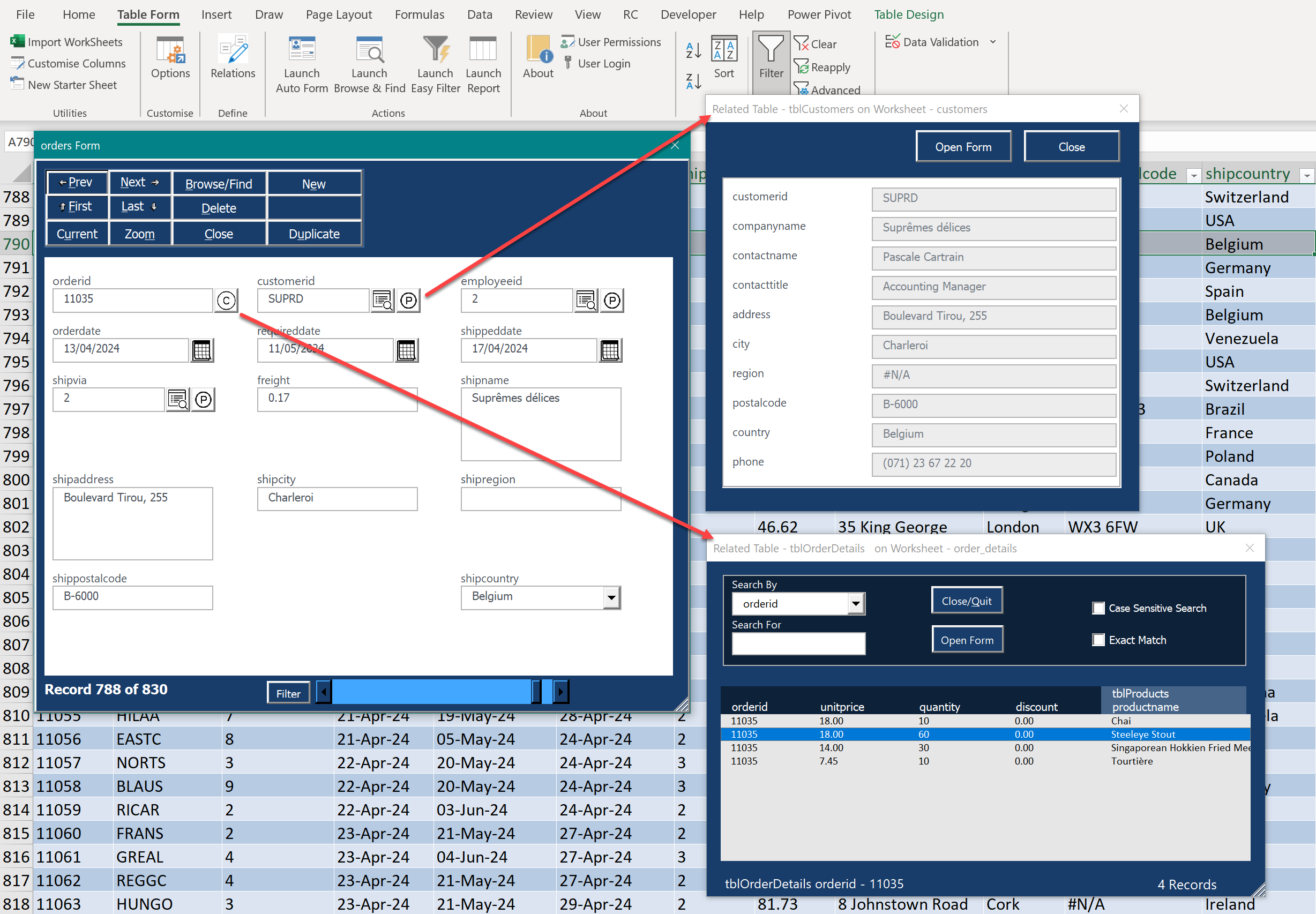
The following example illustrates a table that has both related “Parent” and “Child” tables.
If the user chooses to launch windows for each, they will be updated simultaneously as the user navigates the main table using the main data form. In this case, customer detail as well as related order items for this order are displayed as the user navigates the table.
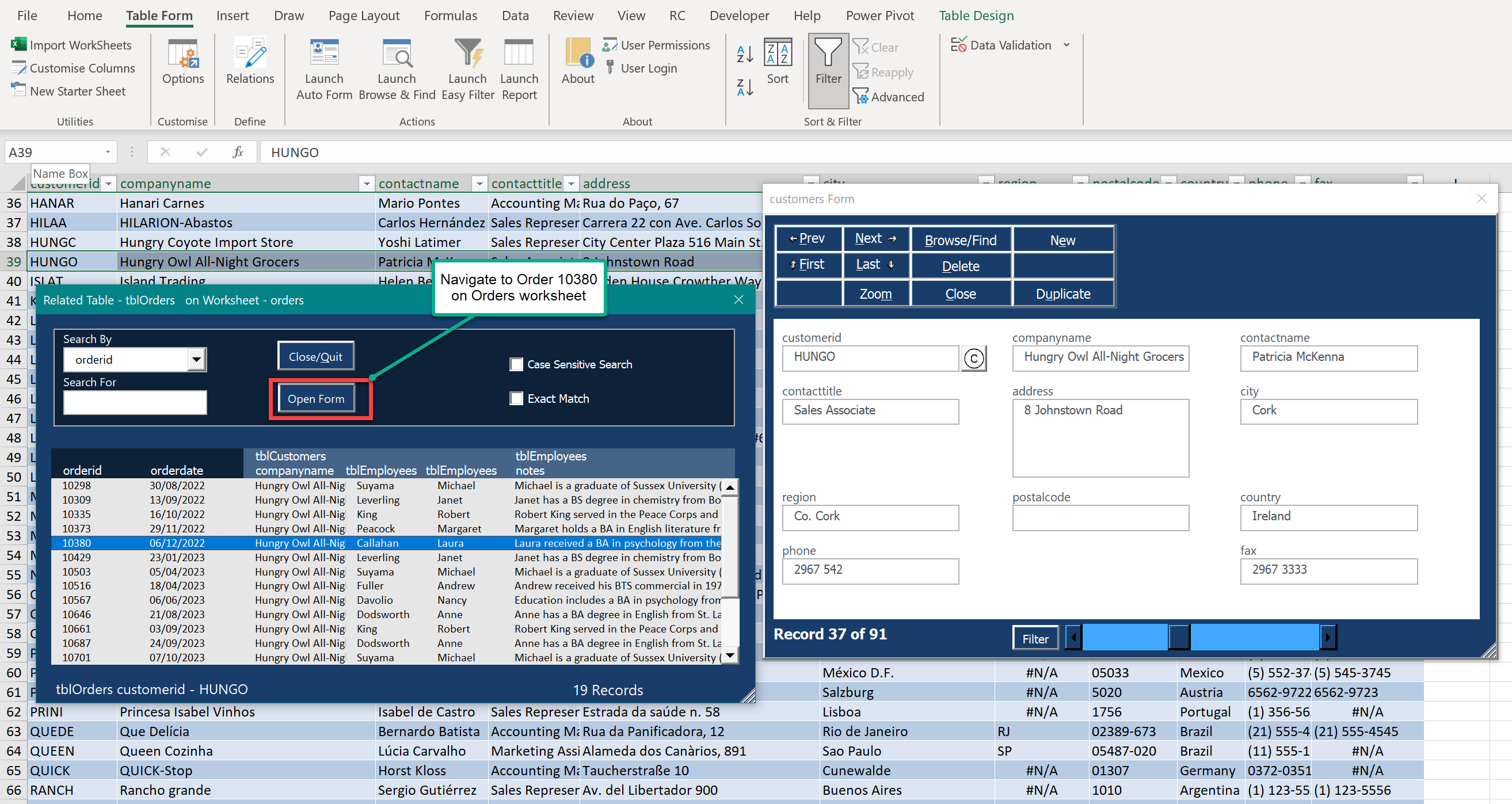
Related Table Navigation – The “Open Form” Button
From any floating related window — whether parent or child — you can click the “Open Form” button to drill deeper into the related data.
Clicking this button will:
- Close the current main/home form.
- Navigate to the worksheet containing the related table.
- Open a full-featured AutoForm for that related table, with the corresponding record automatically selected.
This enables seamless transitions between related tables for viewing, editing, or adding records — all without needing to search manually.
Example:
If you're viewing a Customer form and click the “C” (Child) icon, a floating window appears showing all Orders for that customer. You can select Order 10380 in the list, then click “Open Form” (or just double-click the item). The Customer form will close, the Orders worksheet is activated, and a full Orders form opens directly at Order 10380.
You can navigate back to the customer just as easily by clicking the “P” (Parent) icon on the Orders form — bringing up the corresponding Customer record in its own form.
Like much of AutoExcelForms, this navigation is faster and more intuitive in practice than it may sound in description.
The “Open Form” Button